 Kulan OS
Install guide
About 20 minutes from download to desktop. Keep your computer plugged in.
On a PC
Will this delete Windows?
Only if you choose to. Trying Kulan OS from the USB stick changes nothing on your computer. When you install, you pick Erase disk (Kulan OS only) or Install next to Windows (keep both, and choose one each time you start).
To keep Windows, do this in Windows first:
- Back up your important files.
- Make room: right-click Start, open Disk Management, right-click the C: drive and choose Shrink Volume. Shrink by at least 20 GB (40 GB or more is better) and leave the new space unallocated.
- Using BitLocker? Write down your recovery key first, from account.microsoft.com/devices/recoverykey.
- Turn off Fast Startup: Control Panel › Power Options › Choose what the power buttons do.
Make a USB stick
Download Kulan OS for PC, then open the free app balenaEtcher (Windows, Mac or Linux). Choose Flash from file and pick the .iso, choose your USB stick, then click Flash. Everything on the stick is erased.
Rufus works too on Windows: pick the .iso and choose “DD image” mode when it asks.
Start from the USB stick
Plug the stick in, restart, and keep tapping the boot-menu key as the computer starts. Choose the USB stick from the list.
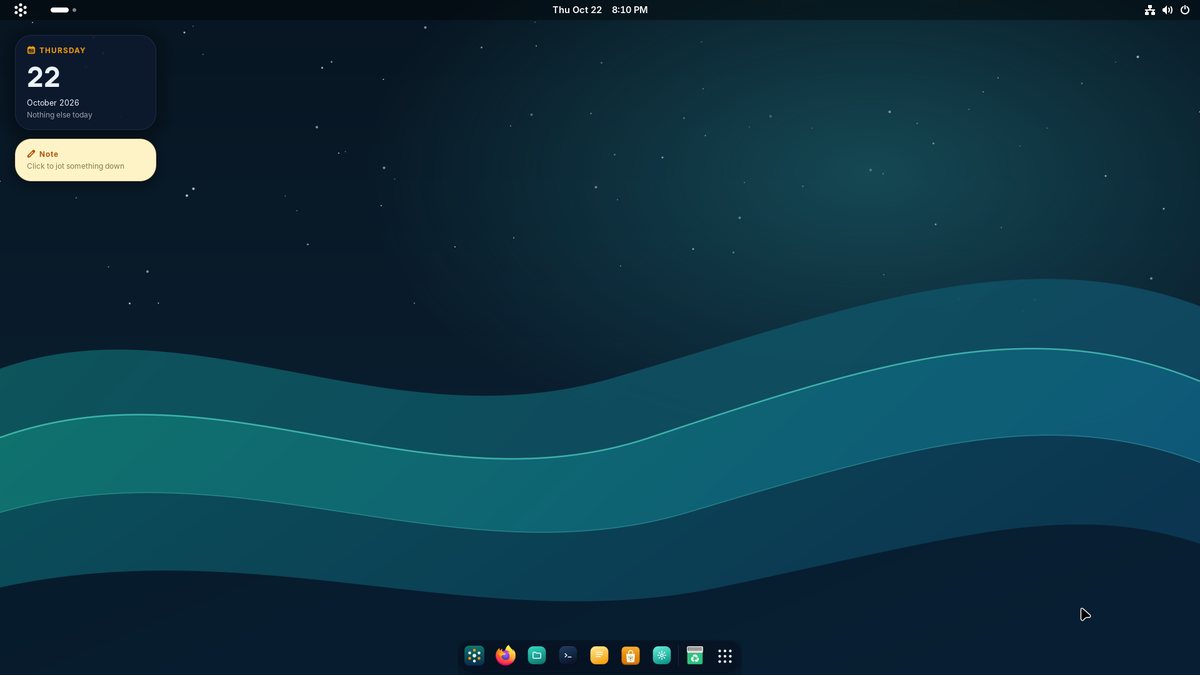
Try Kulan OS
Kulan OS opens straight away from the stick. Connect to Wi-Fi, open some apps and check your screen, sound and touchpad work. Nothing on your computer changes until you install.
Install with Kulan Installer
Click Install Kulan OS, the first icon in the dock, and follow four short steps:
- Keyboard: pick your layout and try it.
- Where to install: Erase disk deletes everything on it; Install next to Windows uses the space you made and keeps Windows and your files. Tick encryption to protect your files with a password.
- Time zone: usually filled in for you.
- Your account: your name, a username and a password.
The summary says exactly what will change, and nothing happens until you click Install. It takes about ten minutes and doesn’t need the internet. Restart, remove the stick, and sign in.
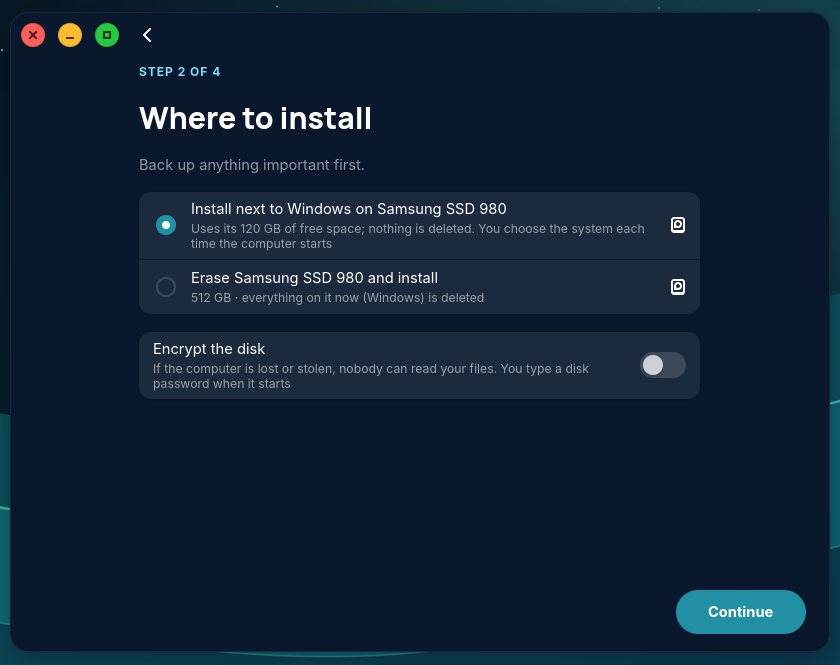
Want to choose partitions yourself? Open Advanced install from the app grid instead.
On a Mac with UTM
Apple Silicon Macs (M1 to M5) run Kulan OS in a window with the free UTM app. Your Mac isn’t changed.
Download Kulan OS for ARM and install UTM from mac.getutm.app or the App Store.
In UTM choose Create a New Virtual Machine, then Virtualize, then Linux, and pick the .iso as the boot image.
Give it 4 GB of memory or more and a 30 GB disk, then save and press Play.
Click Install Kulan OS and erase the virtual disk. When it’s done, shut down, clear the CD/DVD drive in UTM’s settings, and start it again.
Stuck? Most problems have a quick answer.
Go to Help →